Build a privacy-friendly AI support responder
At the end you have a support address whose emails go to your own n8n workflow, where your LLM answers from your Notion knowledge base and escalates what it can't answer, without any tool reading your mailbox.
By Xander Groesbeek, founder · Published March 2026 · Updated October 2026 · 6 min read
In brief
What you'll build. A support responder: customer emails to support@ are matched against your knowledge base, and your LLM drafts a reply or hands the email to a human.
What you need. An EmailConnect account (Free works), an n8n instance, a Notion workspace, an API key for the LLM of your choice, and an SMTP account to send replies.
How it works. EmailConnect turns each email into JSON and posts it to an n8n webhook. n8n looks up the best knowledge-base entry with your LLM, then sends the drafted answer or escalates.
The steps at a glance
- 1
Point a support address at n8n
An EmailConnect alias that posts each email to an n8n webhook.
- 2
Build the knowledge base
A Notion database of questions and answers.
- 3
Import and connect the n8n workflow
Webhook, knowledge-base lookup, your LLM, reply or escalate.
- 4
Add a human approval step
Optional: approve each draft before it is sent.
The AI in this build is yours: an LLM you choose and pay for, called from your own n8n workflow. EmailConnect does not run AI on your email; it receives the email and delivers it to your webhook as JSON.
Why not an AI inbox tool?
AI email assistants such as LIAM draft replies and manage your inbox, but they need OAuth access to your whole mailbox: every email you've received, every attachment, every conversation. If such a service is breached, or its AI replies to the wrong person, your whole email history is in play.
This build turns that around: the AI only ever sees the emails you route to it.
| Aspect | AI inbox tools (e.g. LIAM) | This build |
|---|---|---|
| Inbox access | Full OAuth: all emails | Only emails you route to it |
| AI provider | Their choice | Yours: Claude, GPT, Mistral, Ollama… |
| Knowledge source | Your email history | Your curated knowledge base |
| Human review | Depends on the tool | Optional approval step |
| Where email is processed | Varies | EU (EmailConnect); the LLM wherever you choose to run it |
| Cost | A subscription | EmailConnect plan plus LLM tokens |
Step 1: Point a support address at n8n
This step gives you an address customers can write to, with every email arriving at n8n as JSON.
Create an alias for your support email, on your own domain (for example support@in.yourdomain.com, with an MX record) or on a system address that works straight away. Set its webhook to the URL of the n8n Webhook node from step 3. The getting started guide and domain setup walk through both.
Each email arrives as a JSON payload. The fields this workflow reads are the sender, the subject and the plain text body:
Part of the webhook payload (see the payload reference for every field)
{
  "message": {
    "sender": {
      "email": "customer@example.com",
      "name": "Sarah Johnson"
    },
    "recipient": {
      "email": "support@in.yourdomain.com",
      "tag": null
    },
    "subject": "Can't reset my password",
    "content": {
      "text": "Hi, I've tried resetting my password three times but I'm not getting the email. Can you help?",
      "html": "..."
    },
    "attachments": []
  }
}
Text and HTML bodies come on every plan. On Maker and above, two more things help here: you can switch on a Markdown version of the body (message.content.markdown, a per-alias setting) that is easier for an LLM to read, and every payload carries a spam score and SPF/DKIM/DMARC results (spam.score, spam.authentication), so you can skip suspicious mail before it costs you tokens.
Step 2: Build the Notion knowledge base
This step gives the LLM something to answer from, so replies come from your documentation rather than its guesses. Create a Notion database for your support articles:
| Property | Type | Purpose |
|---|---|---|
| Title | Title | The question or article name (used for matching) |
| Content | Rich text | The answer |
| Keywords | Multi-select | Tags that help matching |
| Category | Select | e.g. Account, Billing, Technical |
Fill it with your existing FAQ, help articles or common support answers. Start with the 10–20 questions you get most often; ten well-written entries do more than a hundred pasted documents.
Step 3: Import and connect the n8n workflow
This step connects the webhook to your knowledge base and your LLM, and decides between answering and escalating.
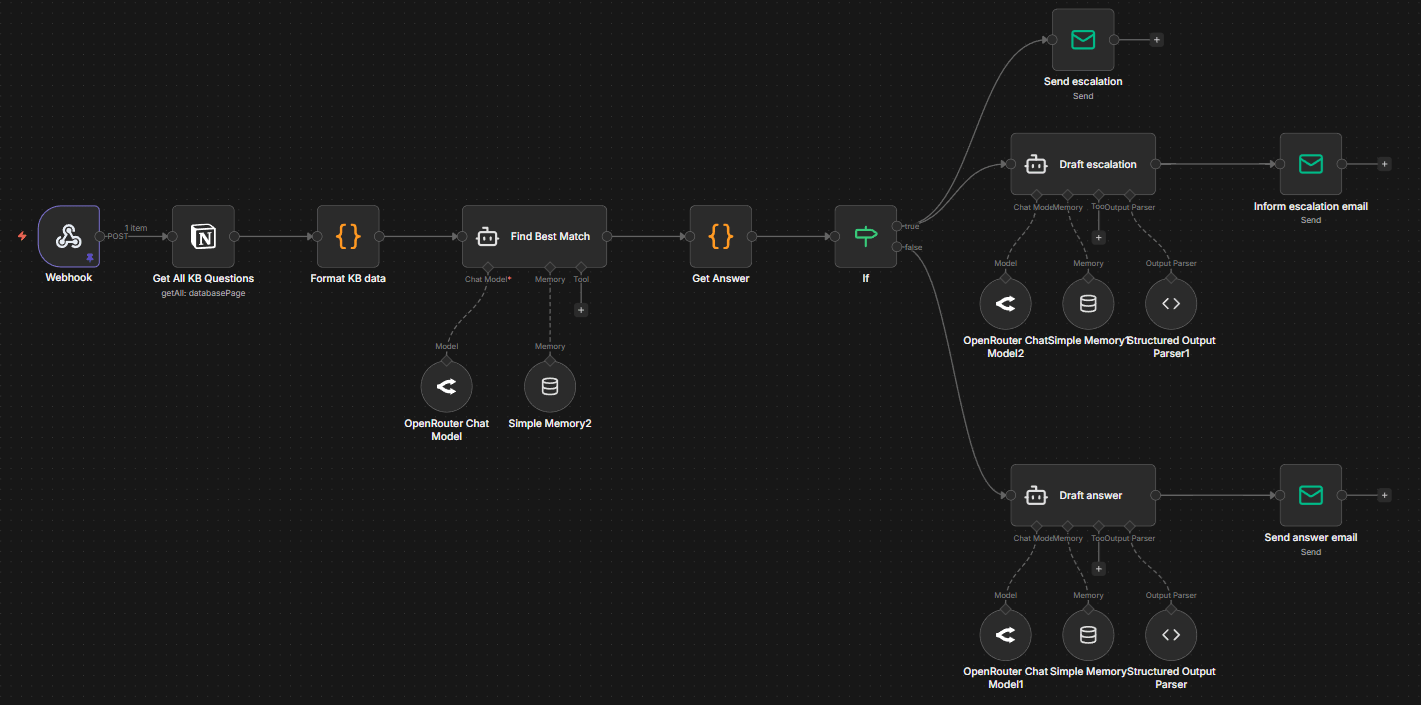
Download the n8n workflow JSON → Import it into n8n, then add your own credentials (OpenRouter, Notion, SMTP) and your Notion database ID.
Node by node
- Webhook. Receives the POST from EmailConnect. Copy its URL into your alias's webhook.
- Get All KB Questions. Fetches every entry from your Notion database on each run, which is fine up to a few hundred entries.
- Format KB data. A Code node that turns the entries into numbered question-and-answer pairs, with the first 120 characters of each answer as extra context for matching.
- Find Best Match. An LLM agent compares
message.content.textwith every entry and returns the ID of the best match, orNO_MATCHwhen it is less than 70% confident. It runs through OpenRouter, so you can pick any model. - Get Answer. Looks up the matched entry; on
NO_MATCHor an unknown ID it flags the email for escalation. - If. Escalate (true) or answer (false).
- Escalation path. Sends you an internal notification with the question, and sends the customer a short note, in their own tone, that their question has been passed on.
- Answer path. The LLM drafts a reply from the knowledge-base entry, with a help-article link when there is one. A structured output parser returns
{ subject, message }, which goes out by SMTP tomessage.sender.email.
Conversation memory
Each LLM agent has a buffer-window memory keyed by the sender's address (message.sender.email). When the same person writes again, the model has the previous exchange as context and doesn't ask the same questions twice.
Step 4: Add a human approval step
This optional step stops anything going out until you've seen it. Instead of sending the draft, the workflow sends it to you, for example in Telegram with "Send" and "Don't send" buttons:
- The LLM drafts a reply from your knowledge base.
- You get the draft in Telegram with approve and reject buttons.
- Approve and the reply is sent; reject and the email is escalated.
Tip
Start in approval mode and switch to automatic sending only once the drafts are consistently right. Tell the LLM what it must not do: make promises, quote prices, or answer beyond the knowledge base.
Running it in practice
We run this setup on support@emailconnect.eu: n8n matches each question against our help articles and FAQ, the LLM drafts a reply grounded in them, and anything without a strong match is passed to us with a note to the customer. Common questions get an answer; the rest reach a person.
n8n keeps an execution log of every run. Review it regularly to find the questions your knowledge base doesn't cover yet, and add entries for them.
How EmailConnect fits
- No access to your mailbox. Only mail sent to your alias is processed; the AI sees one email at a time, when your workflow passes it on. Privacy promise →
- The AI is yours. EmailConnect delivers the email as JSON; which LLM reads it, and where it runs, is your choice in n8n. Integrations →
- Processed only in the EU, and kept for one hour on Free and Maker, 24 hours by default on Business and Platform. Sub-processors →Data retention →
- Signed deliveries. Turn on Standard Webhooks signing and check the signature before your workflow acts on an email. Webhook signing →
Build your support responder
Create a support@ address, point it at your n8n webhook and send it a test email. The Free plan is enough to try it.
Related
Selective email access vs full mailbox
Why forwarding-based email processing is safer than OAuth mailbox access.
Email as the AI intake layer
Why email is a natural front door for AI agents and automations.
Build an AI scheduling assistant
The same pattern for meeting requests: classify the email, then check your calendar.
Hidden risks of email automation
What "connect your Gmail" means for your data security and compliance.