Automate DMARC report processing with Telegram alerts
At the end, every DMARC aggregate report sent to your domain is unpacked, parsed and stored by n8n, and you get a Telegram summary showing which sending sources pass or fail SPF and DKIM.
By Xander Groesbeek, founder · Published March 2026 · Updated October 2026 · 6 min read
In brief
What you'll build. A DMARC report processor: reports arrive by email, n8n decompresses and parses the XML, stores each record in a data table, and sends you a Telegram summary per report.
What you need. A domain with DMARC set up, an EmailConnect account on Maker or above (reports come as .gz or .zip files, which Free does not deliver), a self-hosted n8n you can configure, and a Telegram bot.
How it works. EmailConnect receives each report and posts it to n8n with a download link for the compressed attachment. n8n fetches the file, unpacks and parses it, then stores the results and alerts you.
The steps at a glance
- 1
Send DMARC reports to an alias
An EmailConnect alias plus a rua= address in your DMARC record.
- 2
Allow zlib in n8n
So a Code node can unpack .gz and .zip files.
- 3
Import the n8n workflow
Download, decompress, parse, store and alert in six nodes.
- 4
Read the alerts
One Telegram message per report, with pass/fail per sending source.
Why DMARC reports matter
Once your domain has a DMARC record, providers such as Google, Microsoft and Fastmail send you aggregate reports. They tell you which servers send email as your domain, and whether those servers pass SPF and DKIM.
The reports arrive as XML inside .gz or .zip attachments, so almost nobody opens them. They pile up until something goes wrong (a spoofing attempt, a misconfigured mail server, a broken DKIM key), and by then the evidence has been sitting unread for weeks. This flow turns them into alerts.
Step 1: Send DMARC reports to an alias
This step makes report senders deliver to EmailConnect, which passes each report to n8n.
Create an alias for the reports, for example dmarc@in.yourdomain.com, and set its webhook to the URL of the n8n Webhook node from step 3. (Getting started and domain setup cover aliases and the MX record.) Then point the rua tag of your DMARC record at that address:
DMARC record (TXT on _dmarc.yourdomain.com)
v=DMARC1; p=quarantine; rua=mailto:dmarc@in.yourdomain.com; pct=100 If you haven't set up DMARC yet, start with p=none: you get reports without affecting delivery. Move to p=quarantine or p=reject once every legitimate source passes. When the report address is on a different domain from the one being reported on, receivers check that the receiving domain agrees to take the reports (an external destination record, RFC 7489 section 7.1), so a subdomain of your own domain is the simplest choice.
Step 2: Allow zlib in n8n
This step lets the Code node use Node.js's built-in zlib module to unpack the reports. Since n8n v2, Code nodes run in a sandbox that blocks built-in modules unless you allow them.
Configure both places
With an external task runner (the default for self-hosted n8n v2), set the allowlist in both the main n8n container and the runner. Setting it in only one doesn't work.
Main n8n container (docker-compose.yml)
environment:
  - NODE_FUNCTION_ALLOW_BUILTIN=crypto,zlib
Runner container (n8n-task-runners.json)
{
  "env-overrides": {
    "NODE_FUNCTION_ALLOW_BUILTIN": "crypto,zlib",
    "NODE_FUNCTION_ALLOW_EXTERNAL": "moment"
  }
}
Why both: the main container checks module access before it dispatches a task, and the runner executes the code in its own sandbox with its own allowlist. NODE_FUNCTION_ALLOW_BUILTIN is not in the runner's allowed-env by default, so env-overrides injects it directly.
Step 3: Import the n8n workflow
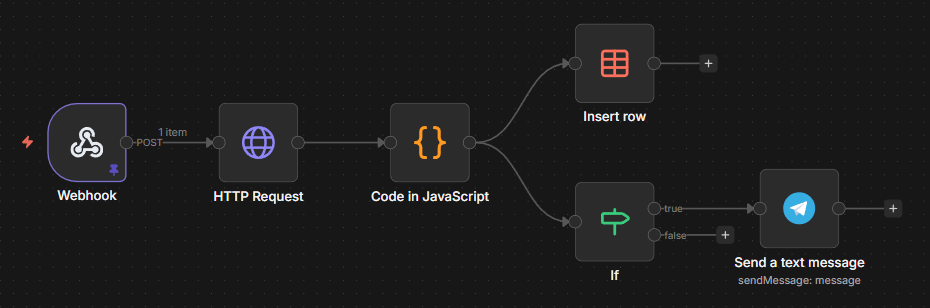
This step does the work: six nodes that fetch, unpack, parse, store and alert. Most of it happens in a single Code node.
Download the n8n workflow JSON → Import it, add your Telegram bot credentials and chat ID, and optionally set up the data table.
Node by node
- Webhook. Receives the POST from EmailConnect. The report's download link is at
body.message.attachments[0].downloadUrl. - HTTP Request. Fetches that URL and returns the file as binary data, a
.gzor a.zipdepending on the sender. The URL points at EmailConnect and redirects to a short-lived signed link; n8n follows the redirect by default. - Parse DMARC Report (Code node). Detects the format from the magic bytes (gzip, zip or plain XML); decompresses with
zlib.gunzipSyncor, for zip, by reading the entry and usingzlib.inflateRawSync; parses the XML with a small regex-based parser (no external dependencies); extracts the report ID, reporting organisation, date range and, per record, the source IP, message count, DKIM and SPF results and disposition; and builds the Telegram message. - Store in data table. Saves every record (report ID, source IP, count, DKIM/SPF results, date range) to an n8n data table for history. Remove it if you only want alerts.
- Has Telegram message? (If). One report holds many records; the message is attached to the first row only, so this sends one alert per report.
- Send Telegram alert. Sends the HTML-formatted summary to your chat.
Fetch the file when the webhook arrives
The download link works for as long as the email is kept: one hour on Maker, 24 hours by default on Business. This workflow downloads straight away, so that's fine; don't queue the download for later. How attachments reach you →
Step 4: Read the alerts
This step is the payoff: one message per report, showing which sources are failing.
📊 DMARC Report: yourdomain.com
📤 From: Google LLC
📅 2026-03-01 to 2026-03-02
✅ 42x from 209.85.220.41
DKIM: pass | SPF: pass
❌ 3x from 185.12.34.56
DKIM: fail | SPF: fail
📬 Total: 45 messages, ⚠️ 1 source(s) with issues
You see the domain, who reported, how many messages, and which sources fail. Three messages from an unknown IP that fail both checks are either a misconfigured server of yours or someone spoofing your domain; either way, you want to know.
- Report volume varies. Google sends daily reports, some providers weekly, and a low-volume domain may get only a few a month.
- Several domains? Point each domain's
ruaat its own alias, or at one alias; the workflow reads the domain from the report XML, so they can share a webhook. - Extend it. The data table makes a weekly digest or a dashboard of pass rates across your domains a small next step.
We run this flow on dmarc@emailconnect.eu for the reports from Google, Microsoft, Yahoo, Fastmail and others. Before it, the reports went unread; now a failing source shows up in Telegram when its report arrives.
How EmailConnect fits
- Attachments as a download link. Archives such as
.gzand.zipare stored and delivered as adownloadUrlon Maker and above; on Free they are excluded. Attachment processing → - The same pattern for any attachment. Invoices, PDFs, exports: wherever the attachment is the data, the payload gives your workflow the file and the sender's details in one request. Payload reference →
- Processed only in the EU; attachments are stored at Scaleway in France and the Netherlands, or in your own S3 bucket. Sub-processors →
- Signed deliveries. Turn on Standard Webhooks signing so your workflow can reject requests that didn't come from EmailConnect. Webhook signing →
Build your DMARC report processor
Create a dmarc@ address and point it at your n8n webhook. DMARC reports arrive as compressed files, which need the Maker plan.
Related
Email security architecture
How EmailConnect checks incoming email: spam filtering, SPF/DKIM/DMARC and virus scanning.
Attachment processing
Inline or download link, size limits and excluded files.
Build a privacy-friendly AI support responder
Another n8n build: your LLM answers support email from a Notion knowledge base.